How it works
From the scan on the poster to the door swinging open.
There is nothing to wire and nothing to install in the flats. The poster carries a QR code and a dial code; the phones do the rest.
A visit, step by step
1. Scan the poster
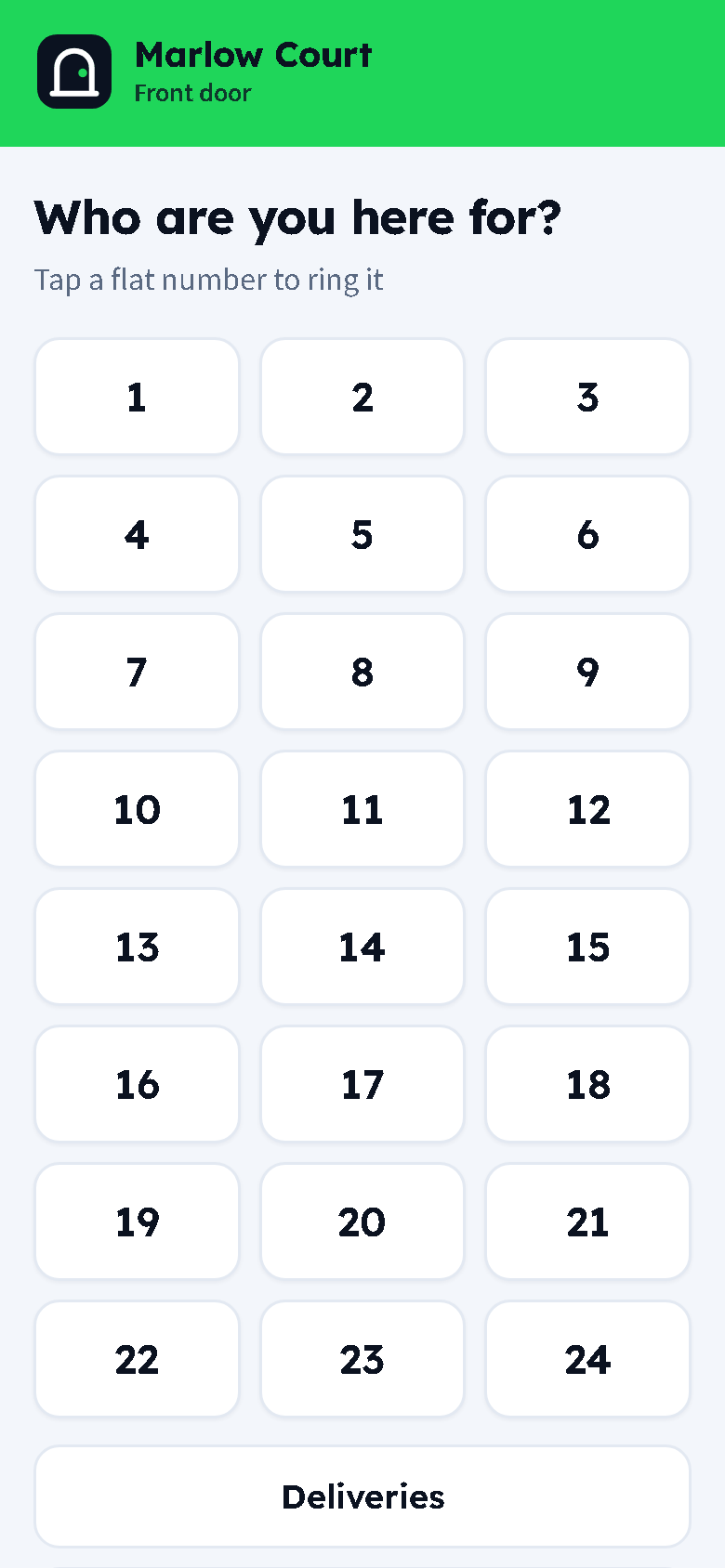
The visitor scans the QR with their phone camera. The bell page opens straight away: the building name, the door name and a button per flat. If the landlord has written instructions for deliveries or trades, those buttons are there too.
2. Tap a flat
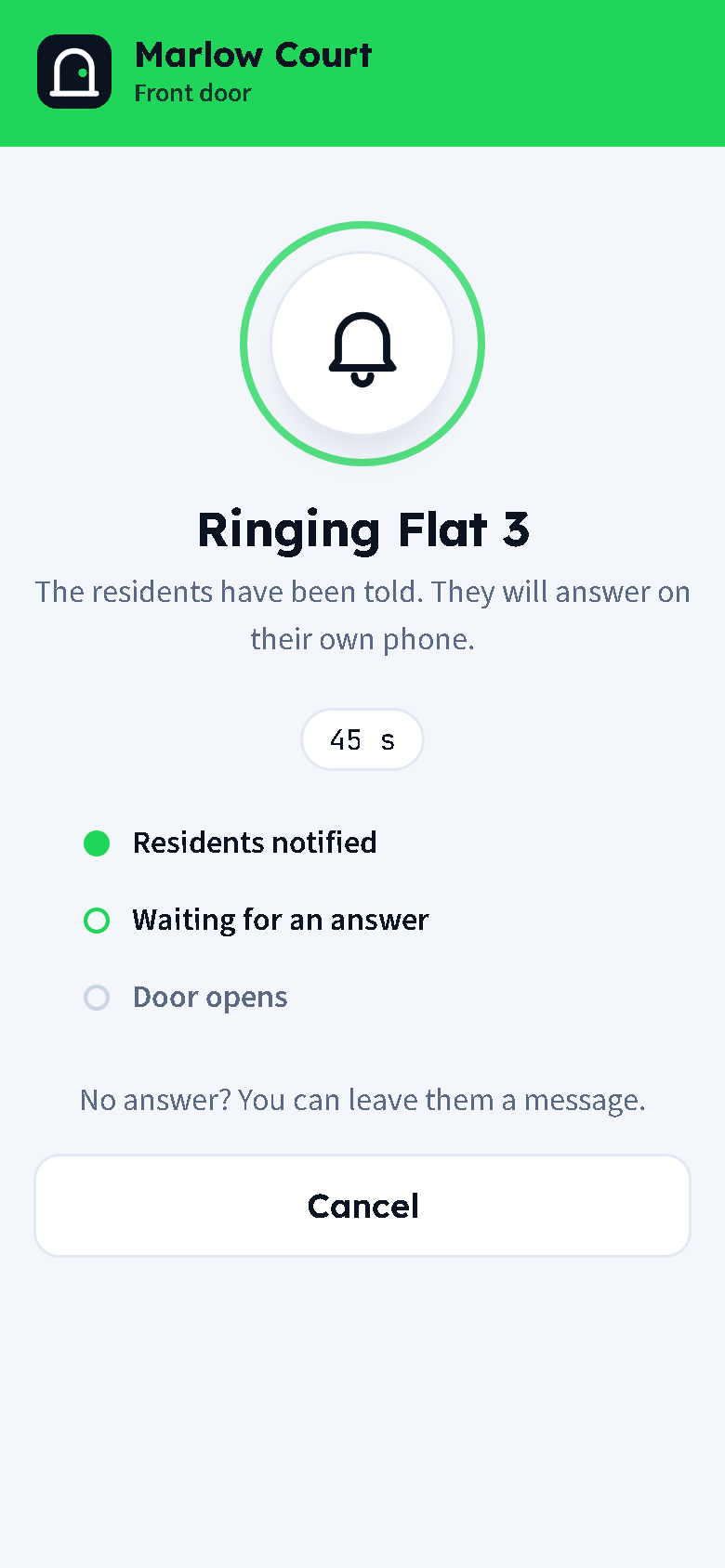
The ring is created and every resident of that flat is told at once. The page shows Ringing with a countdown and the steps: residents notified, waiting for an answer, door opens. The visitor can cancel or, after a timeout, leave a message.
3. The door opens
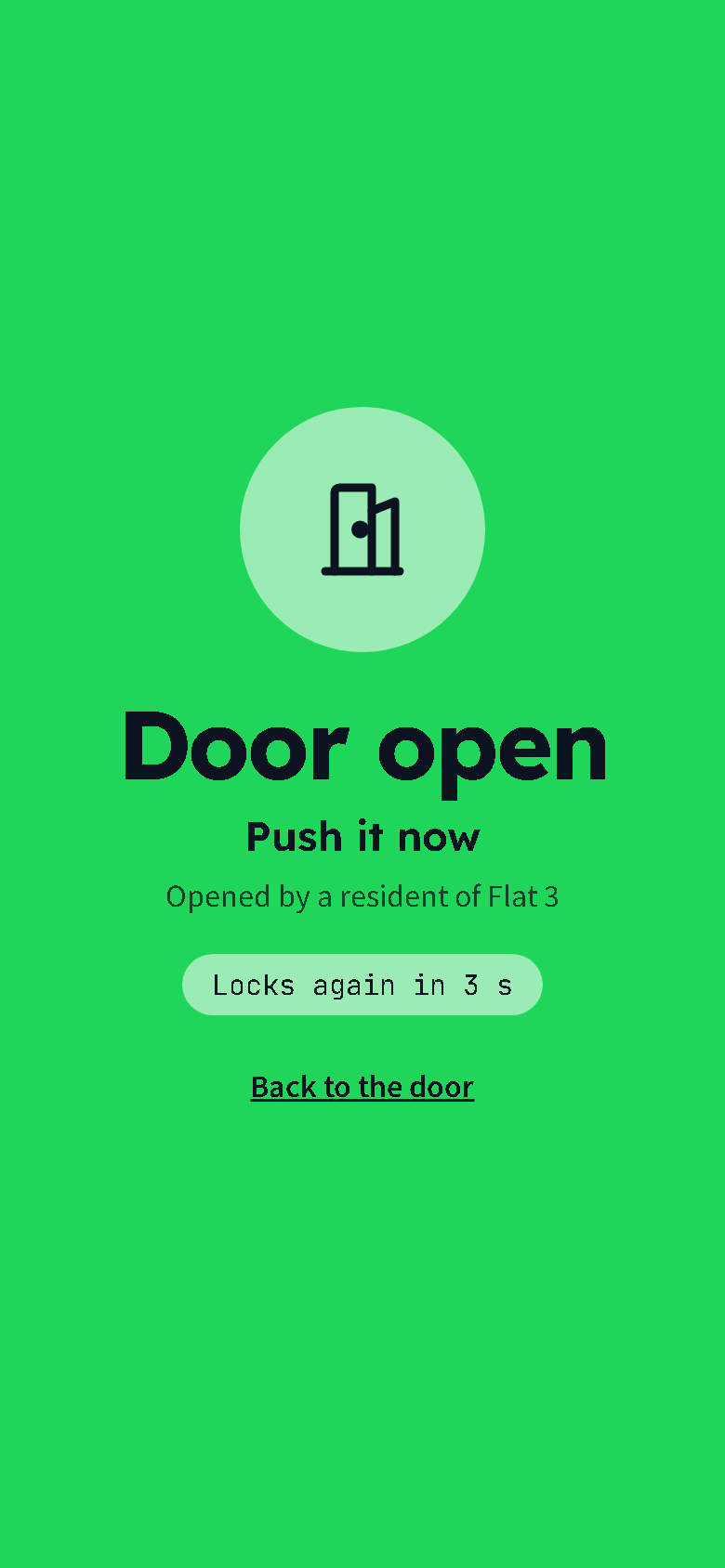
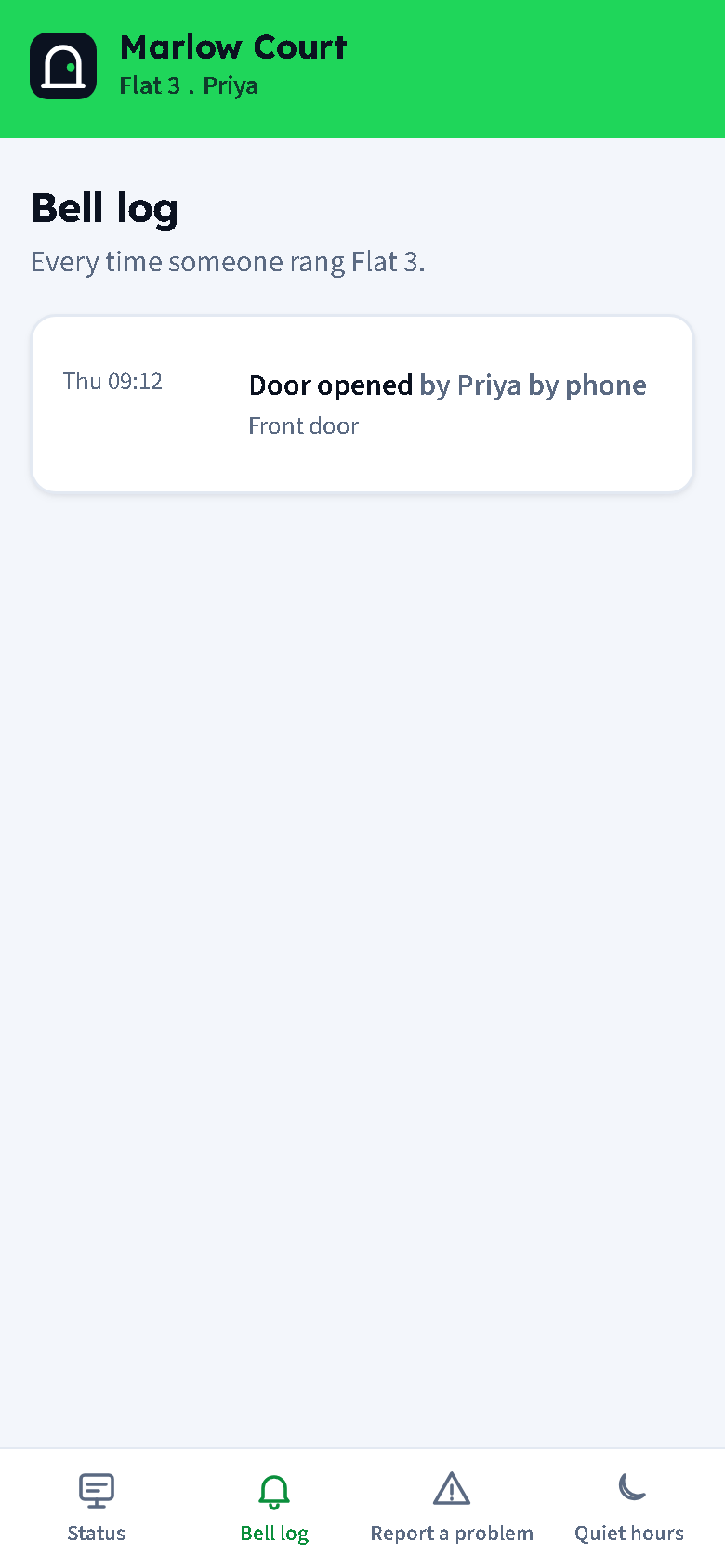
A resident taps Open door on Telegram, or presses 2 on the phone call. The lock releases through the Access Controller board, the visitor's screen turns green, and the ring is logged with who opened it and how.
What the resident sees
On Telegram. A message from the building's bot: "Front door: someone is ringing Flat 12", with the visitor's snapshot if the visitor allowed the camera, and two buttons: Open door and Not now. A tap opens the door. Everyone else's message changes to say who opened it and when.
On the phone. Their mobile rings. A short whisper says, for example, "Marlow Court front door for flat 12. Press 1 to talk, 2 to open the door, or hang up." Only a keypress bridges the call, so a phone that is switched off, diverted or answered by voicemail never takes the call: that leg is dropped after eight seconds and the others keep ringing.
First answer wins. Whichever resident answers first, on either channel, handles the visitor. A late tap gets "Already handled".
When nobody answers
Leave a message
After the ring timeout (45 seconds by default) the visitor gets a message form: text, or a voice note recorded in the browser. It is delivered to the residents on Telegram or by email and kept in the bell log for seven days.
Quiet hours
Between the building's quiet hours (23:00 to 07:00, say) rings are refused with a polite page. A Deliveries ring becomes a message instead, so the courier can still leave a note. A resident can override quiet hours for their own flat.
Too many rings
Three rings per visitor per door in five minutes, one per flat every thirty seconds, twenty per door an hour. Anything more gets a friendly page and a line in the log.
Cannot scan? Use the phone line.
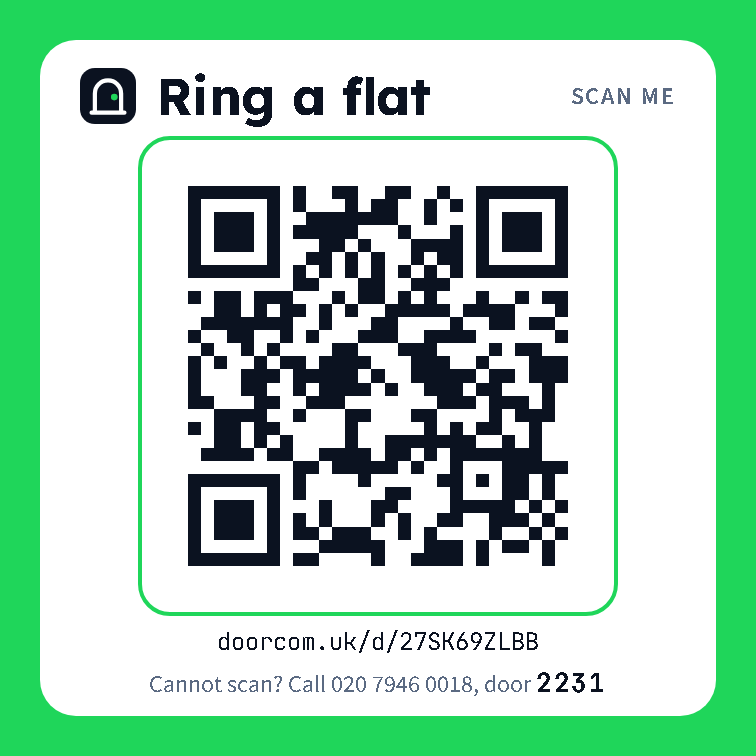
The poster carries the building's phone line and the door's dial code, four to six digits. A visitor without a camera, or with a flat battery, calls the line, keys in the door code and then the flat number, and the same residents' phones ring. The phone path never releases the door on its own: it always needs a resident's keypress.
Both paths end up in the same log, the same bell log for the resident, and the same message form.
Setting a building up
Four steps, all in the panel, and usually done in an afternoon.
Building and door
Create the building, then add a door and choose how it releases: an Access Controller board, or ring only for a concierge desk. Give the door a dial code.
Flats
Add the flats in one go: "1-24" or "A1-A6". Give ranges a floor name so you can message a floor later.
Poster on the door
Print the A5 or A4 poster from the door's page and put it where the panel would be. A sticker fits a glass door.
Sign residents up
Show the sign-up screen at the desk, hand out claim cards, or text or email the link. Each resident enters their name and mobile and types the code they are texted.